Adding an application
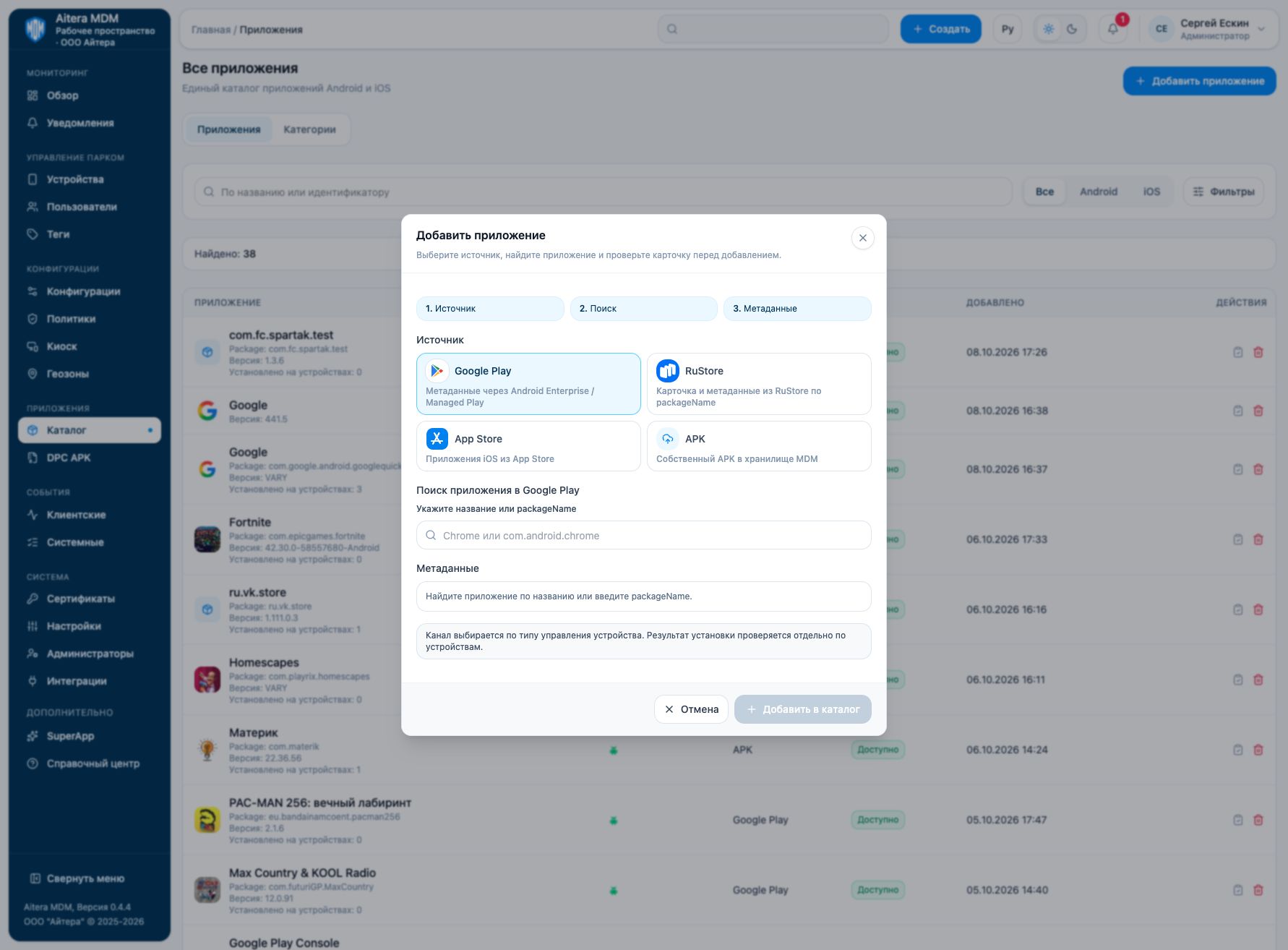
The source determines where the information and the installation file come from. The installation type is selected later, during assignment. First determine the platform and the device management channel, then add the application.
Application sources
| Source | How to add | What is required for installation |
|---|---|---|
| Google Play | Search by name or packageName, select the card, and check the metadata. | Through Google AMAPI: assignment in the group policy. Through Aitera DPC: an attached, verified APK of the same package. A Google Play card alone does not contain an installation file for DPC. |
| RuStore | Find the application, select the result, and check the packageName and the published version. | Aitera DPC requires a verified APK. The card offers the “Get APK from RuStore” action: the server downloads and verifies the file. Importing metadata does not replace this step. |
| APK | Select your own .apk file and confirm trust in the signer in the upload form. |
A verified file for Aitera DPC. A manual APK record does not use installation through Google Play/AMAPI. |
| App Store | Enter the positive numeric App Store ID of the iOS application and check the card. | A supported Apple MDM channel and a valid store ID. Connecting only the Aitera mobile client by QR code does not confirm that Apple system-level management is present. |
Do not choose a source based on where the application was once downloaded manually. The same packageName may exist in several stores, but the catalog card, the verified APK, and the installed version are different objects.
Adding to the catalog
- Click “Add application” and select a source.
- Find the application or upload the APK according to the rules of the selected source.
- Check the name, platform, identifier, version, and developer. For RuStore, wait for complete information about the published version; if the metadata is incomplete, the import is blocked.
- For an APK, check the signer and the file. The allowed size is shown in the upload form; do not use the universal limit from the old help.
- Click “Add to catalog” and open the added card.
- Perform assignment and installation. The “Available” status in the catalog does not yet mean the application is installed on the phone.
APK for the store card
For Google Play, open the card and use “Add APK for DPC” or “Update APK for DPC”. The package name of the file must match the card; the server checks the version and signature. The source remains Google Play: on Google devices the store policy is applied, and on compatible devices Aitera DPC uses the attached file.
For RuStore, open “Get APK from RuStore” and check the version, size, and SHA-256 of the signer certificate. Confirm trust in the signer and start “Download and verify”. Wait for “APK verified and saved”. If this version is already saved, the form separately requires confirmation to replace the file. The card source remains RuStore.
A new version must match the application identity and have a compatible signature. Do not treat an APK from another store as a valid update just because the name is the same. A signature or version error must be fixed before assignment rather than by repeating delivery of the same file.
What to choose
- Corporate Android device with Aitera DPC: an APK, or a store card with a verified APK.
- Android Enterprise through Google: Google Play and the group policy; store modes are described in the installation matrix.
- iPhone/iPad: an App Store application; separately confirm the supported Apple MDM management.
- Installation of MDM or SuperApp by the user: use the direct links to Aitera applications.