Kiosk mode settings
Open “Kiosk → Create Kiosk” or the menu of an existing profile → “Configure profile”. The mode and orientation are in the general settings, the system elements are on the “Restrictions” step. For the detailed saving procedure, see creating a profile.
Mode and applications
SingleApp leaves one work Android application. Select it in the catalog and make sure it is ready for Kiosk. If the workflow requires a second application, for example an external browser, check such a transition before applying or select MultiApp.
MultiApp permits a set of work applications on one device. Select all applications the user needs: the main work application, communication tools, a browser, and other dependencies of the specific scenario. Adding an entry to the set does not prove that it is installed or ready for its first launch.
The “Not ready for Kiosk” status blocks selection. Fix the reason indicated on the application card. The service package com.dex.mdm is added by the server automatically; do not select it instead of a work application.
Screen orientation
| Value | Meaning | Where available |
|---|---|---|
| Auto | The normal orientation behavior of the device and the application is used. This does not lock the portrait position. | In both modes; the only option for SingleApp. |
| Portrait | Portrait orientation of Kiosk is requested. Check the screen and the behavior of each application on the phone. | MultiApp. |
| Landscape | Landscape orientation of Kiosk is requested, for example for a terminal mounted horizontally. | MultiApp. |
In SingleApp the field is unavailable: the console sends Auto, and the target application controls the orientation. The preview in the form shows the selected option but does not replace a check on a real device.
System elements and restrictions
In a new profile, all six permission switches are off. In an existing profile, the saved values are shown. A switched-off switch does not delete the application or its data: it does not permit the corresponding system interface element inside Kiosk.
| Setting | SingleApp | MultiApp |
|---|---|---|
| Home screen | Unavailable. | Can be permitted. |
| Recent apps | Unavailable. | Can be permitted together with the home screen. |
| Notifications | Unavailable. | Can be permitted together with the home screen. |
| Status bar | Can be permitted. | Can be permitted. |
| Power menu | Can be permitted. | Can be permitted. |
| Lock screen | Can be permitted. | Can be permitted. |
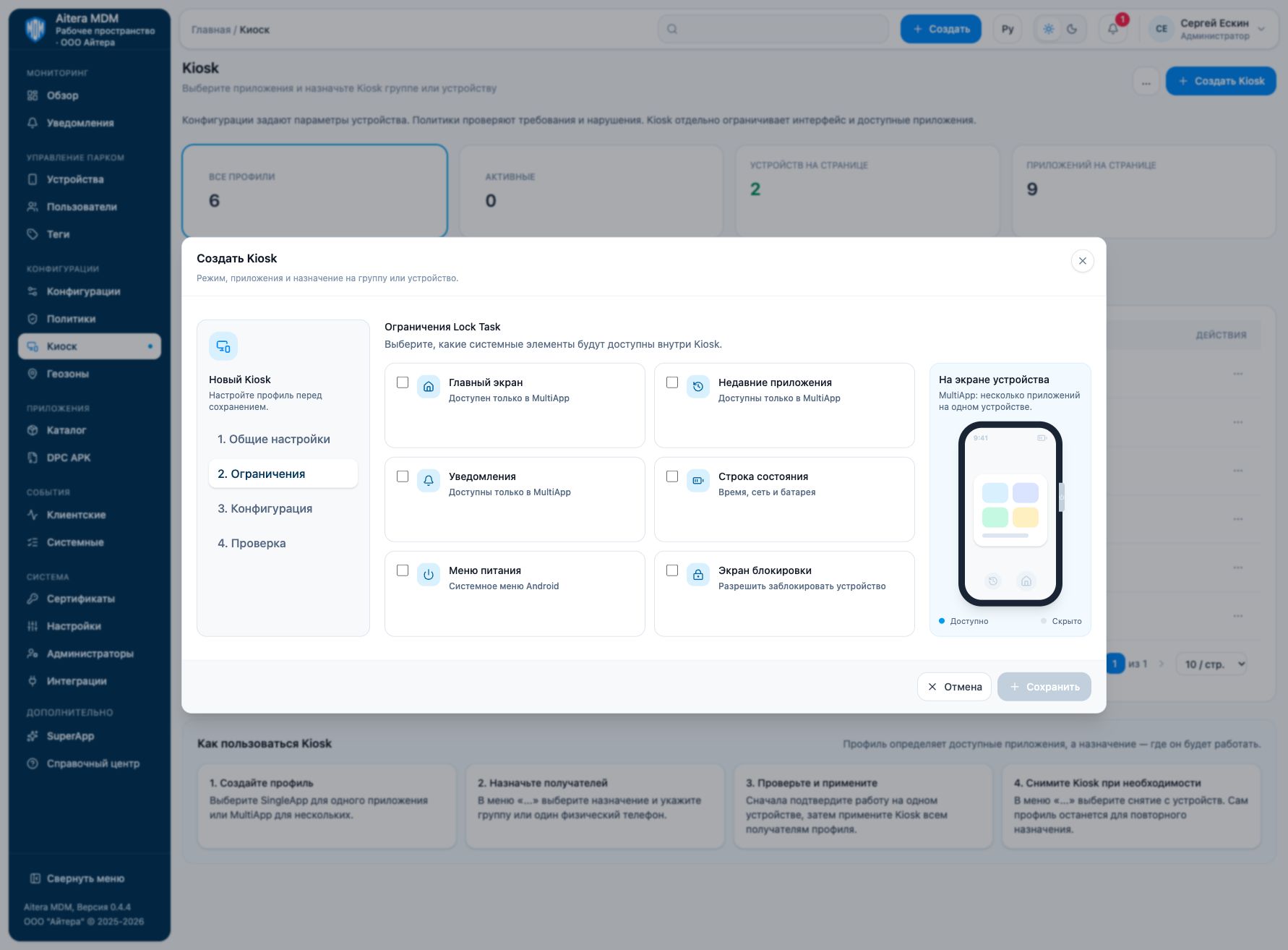
Home screen
Enabling it permits the system Home transition. In MultiApp this is needed to return to the managed start screen and select another work application. When it is off, the user does not get this transition through Home; be sure to check how the user will return to the application list in your scenario.
Check the Home button or gesture on the phone: the intended managed screen should open, not an ordinary desktop with unrelated applications. In SingleApp the setting is unavailable.
Recent apps
Permits the system overview screen and switching between tasks. Turning it off does not permit this way of switching. For a work tablet with several applications the setting can be useful, but you need to check the whole list of tasks shown.
In Android Lock Task this element requires Home to be permitted at the same time. Do not set the combination “Recent apps — on, Home screen — off”. In SingleApp the setting is unavailable.
Notifications
Permits notifications and access to their system interface. This is not a Push sending setting: if an application did not receive a message, turning on the switch will not deliver it.
In Android Lock Task, permitting notifications requires Home; the quick settings panel remains disabled. Check the transition from a notification: it should lead to a permitted work application. In SingleApp the setting is unavailable.
Status bar
Permits system information about the time, battery, and connection. Useful when the user needs to see the charge and network state. When it is off, this information is not permitted by a separate Kiosk flag.
This setting does not enable notifications. You can permit battery and network information while leaving notifications off. The exact appearance of the system bar depends on the device.
Power menu
Permits the system action menu when the power button is held, for example shutdown and restart. Leave it off if the user must not stop the terminal on their own; permit it if shutdown is part of their work duties.
A switched-off switch restricts the menu but is not proof that all hardware ways of shutting down or forcing a restart are blocked. Check the button behavior on the specific model and plan device maintenance in advance.
Lock screen
Permits the system lock screen inside Lock Task. Use it if the device must lock between employee sessions. The setting does not create a PIN, does not set password requirements, and does not enable Lost Mode.
The permission does not override other device restrictions: if the lock screen is disabled by a separate management setting, this switch alone will not restore it. Check screen off, wake-up, and returning to the work application.
The dependencies of Home, notifications, and the task overview, as well as the interaction of the lock screen with other policies, are described in the official Android DevicePolicyManager reference. They limit the permitted combinations; saving the form does not yet prove they are applied on the phone.
Device configuration
On the “Configuration” step, you can select an active Android COBO configuration for the same recipient or leave “Do not assign a configuration”. The Kiosk profile defines the interface; the configuration sets separate device parameters. Check them together, especially network access, the lock screen, and the settings the work application needs.
Do not attribute camera, Wi-Fi, Bluetooth, screenshot restrictions and password requirements to the six Kiosk switches: for these tasks, first check the corresponding COBO configuration parameters. The presence of such a setting in a configuration does not guarantee that any mode or management channel supports it.
Examples of choosing settings
The examples below are options for initial testing, not ready-made universal profiles. After testing, adjust them to the workflow.
| Task | Mode | Initial set |
|---|---|---|
| Self-service terminal | SingleApp | One application; Auto; Home, overview, and notifications unavailable. Permit the other system elements only if the visitor needs them. |
| Work tablet with inventory tracking and communication | MultiApp | Main application and a communication tool; Home on. Turn on notifications together with Home if the user needs messages. Task overview — as needed. |
| Mounted horizontal work screen | MultiApp | Landscape; work set of applications. Status bar — if the operator needs charge and network. Check that the applications work correctly in landscape orientation. |
| Personal employee work terminal | MultiApp | Home and work applications; lock screen permitted if locking between sessions is required. The password is set by the corresponding configuration, not by this switch. |
Verification after changes
- Check the mode, the application list, the orientation, and the switch combinations.
- Save the profile and perform a test apply on one device.
- Check Home, task overview, notifications, status bar, power menu, and lock screen against the selected values.
- Run the entire work scenario: sign-in, transitions, network, and returning to the application after wake-up or reboot.
- Confirm the exit method for maintenance, then apply the profile to the remaining recipients.