Android Enterprise
Connecting the organization to Google Android Enterprise / Android Management API and Managed Google Play. This is a separate management channel that should be distinguished from the Aitera DPC.
Open Integrations → Add integration → Android Enterprise. For a connection that is already installed, use Configure.
The form also has “Connect via Google”: after the organization is registered, the Enterprise ID is saved automatically. The manual option below is intended for a pre-prepared organization.
Preparation
- In Google Cloud, enable the Android Management API, create a service account and grant it the Android Management User role.
- Create a JSON key for the service account, download the file once and upload the entire JSON into the secret field.
- Complete enterprises.create. From the name field of the response (of the form enterprises/LC…), take the enterprise identifier after enterprises/.
- Save the data and separately check the backend’s access to the enterprise; the device counters and the Managed Play status are filled in by the server.
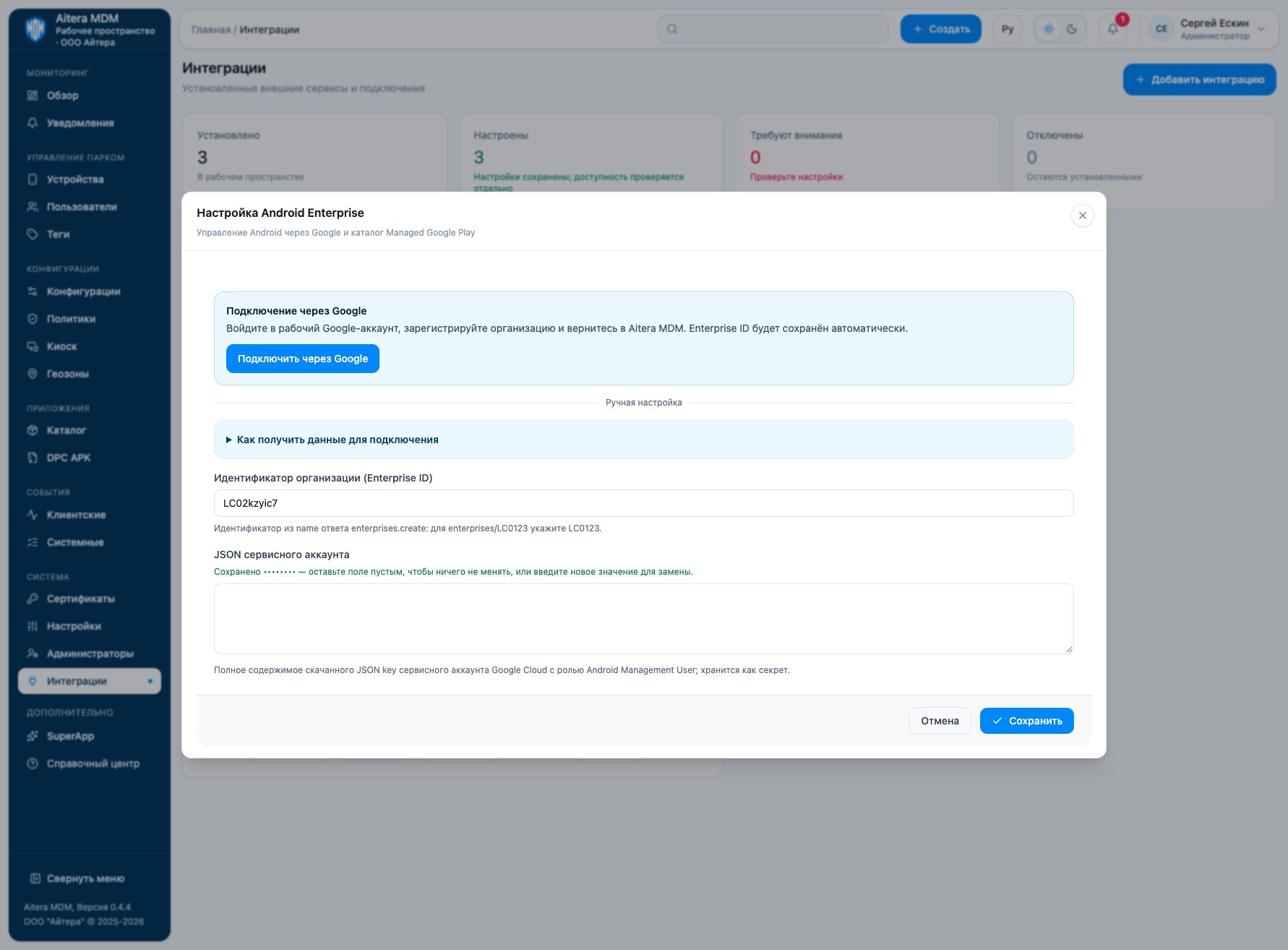
Parameters
| Field | Kind | Purpose and filling rules |
|---|---|---|
| Organization ID (Enterprise ID) | Setting | Identifier from the name of the enterprises.create response: for enterprises/LC0123, enter LC0123. |
| Devices registered | Read-only | Number of enterprise devices calculated by the server. The field is read-only. |
| Managed Play status | Read-only | Current status of the Managed Google Play connection returned by the server. The field is read-only. |
| Service account JSON | Secret | Full contents of the downloaded JSON key of the Google Cloud service account with the Android Management User role; stored as a secret. |
Saving and changing
Fill in the parameters and click “Save”. When the form is reopened, secrets are not shown: the secret presence indicator is not its value. An empty field for an existing secret keeps the previous value; a new value replaces it. After changing, check the connection again.
The Android Enterprise type is available in the full integration catalog.
Verifying the result
- Check that the enterpriseId and the service account belong to one consistent Google Cloud project.
- Run the integration check and look at the server-side Managed Play status.
- Check the Managed Google Play catalog and the registration of a test device through the selected Android Enterprise channel.
The “Configured” status means saved settings. Evaluate the connection check result and the target operation result separately. Check details are available in the connection card.
Limitations and dependencies
The Enterprise ID is entered without the enterprises/ prefix. The number of devices and the Managed Play status are server indicators. A Google connection does not automatically move devices already registered with the Aitera DPC to Android Enterprise.
Troubleshooting
| Symptom | What to check |
|---|---|
| Enterprise not found / no access | Check the short enterpriseId, the project and the service account permissions. |
| JSON is not accepted | Upload the entire JSON key, not client_email or private_key separately. |
| Connection exists, device did not appear | Check the registration method and the enterprise the enrollment is bound to. |