Temporary and emergency exit from Kiosk
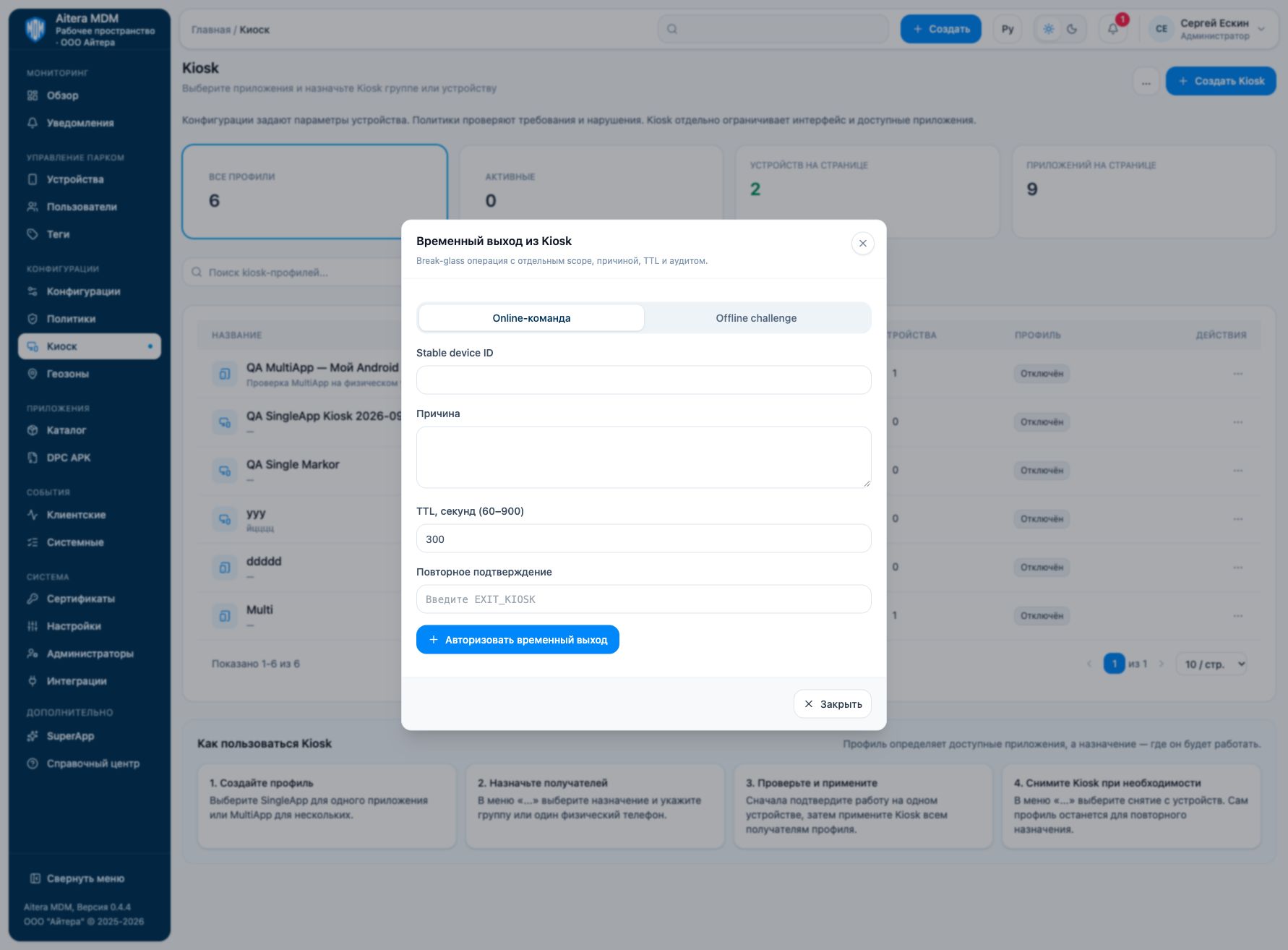
To service a single device, in the “Kiosk” section open the top menu “More → Emergency exit”. The form is called “Temporary exit from Kiosk”. The operation requires a separate access permission, a reason, and repeated confirmation; it is recorded in the audit.
For permanent removal of restrictions, use “Remove from devices”. A temporary exit does not delete the profile and its assignments.
Online command
Suitable when the device can receive a command from the server.
- Select “Online command”.
- Enter the stable identifier of the required device in “Stable device ID”. Use the card identifier, not the displayed phone name.
- Specify the maintenance reason: from 10 to 500 characters.
- Select a TTL from 60 to 900 seconds; the initial value is 300 seconds.
- In the repeated confirmation field, enter
EXIT_KIOSK. - Check the device and the reason, then click “Authorize temporary exit”.
- Wait for execution on the phone. A message about a saved command with the accepted status does not yet confirm that the exit actually happened.
Offline challenge
Suitable for a compatible device without a connection to MDM. The administrator must have access to the server to issue the permission; the word offline refers to the phone, not to the console working fully without a network.
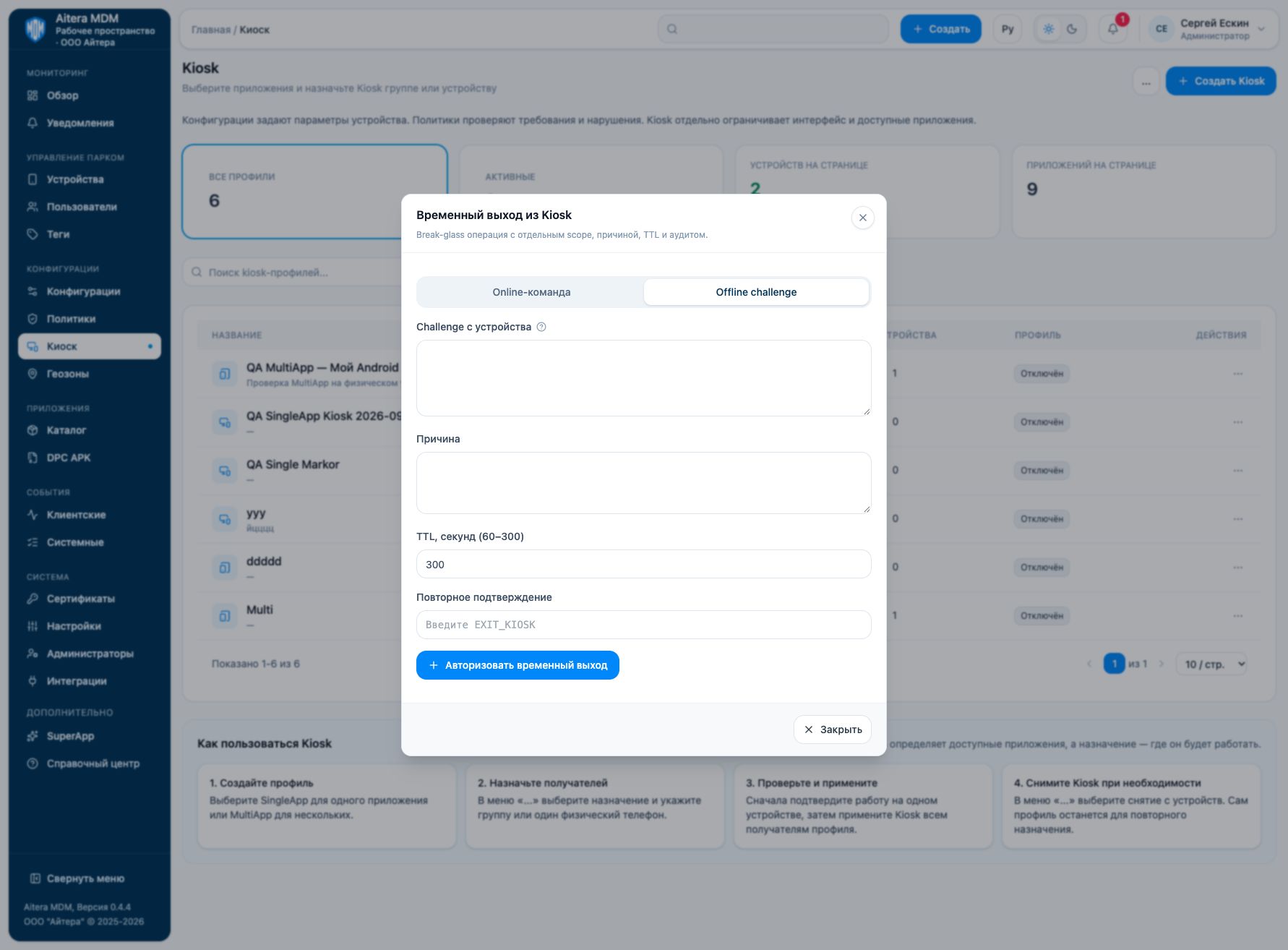
- On the device, in the managed start screen, invoke the challenge: according to the console hint, the JSON is shown after seven quick taps on the title.
- In the console, select “Offline challenge” and transfer the JSON to the “Challenge from the device” field without manually changing the fields.
- Specify the reason, select a TTL from 60 to 300 seconds, and enter
EXIT_KIOSK. - Click “Authorize temporary exit”. The server issues a one-time response for the specific challenge.
- Copy the response and transfer it to the original device before the TTL expires, using the exit interface of its managed start screen.
- Check the actual result on the phone. If the response is expired or does not match, start with a new challenge rather than editing the JSON.
The response is tied to the device identifier, the nonce, and the challenge time. A response from another device cannot be used. The console also checks the response validity period. The TTL limits the validity of the permission; without a separate check, it cannot be considered the time after which the phone automatically returns to Kiosk.
After maintenance
Check the state of the profile and the assignment, restore the work scenario, and make sure on the device that the required mode is in effect again. If re-applying is required, use the regular verification and applying process.
Use the challenge and response only for this maintenance. Do not paste active values into instructions, public messages, or screenshots. This help shows an empty form; exit commands and permissions were not created on the test environment.