Google Maps
Maps and geocoding of device locations. The integration displays the received coordinates; coordinate collection on the device is configured separately.
Open Integrations → Add integration → Google Maps. For a connection that is already installed, use Configure.
Preparation
- In Google Cloud, select a project with billing and enable the required Maps APIs.
- Create separate browser and server keys; restrict the first to the admin console addresses, and the second to the server IP addresses and the required APIs.
- In IAM, create a service account with the API Keys Viewer role (apikeys.keys.get and apikeys.keys.lookup).
- Open Service Accounts → Keys → Add key → Create new key, select JSON and upload the entire file.
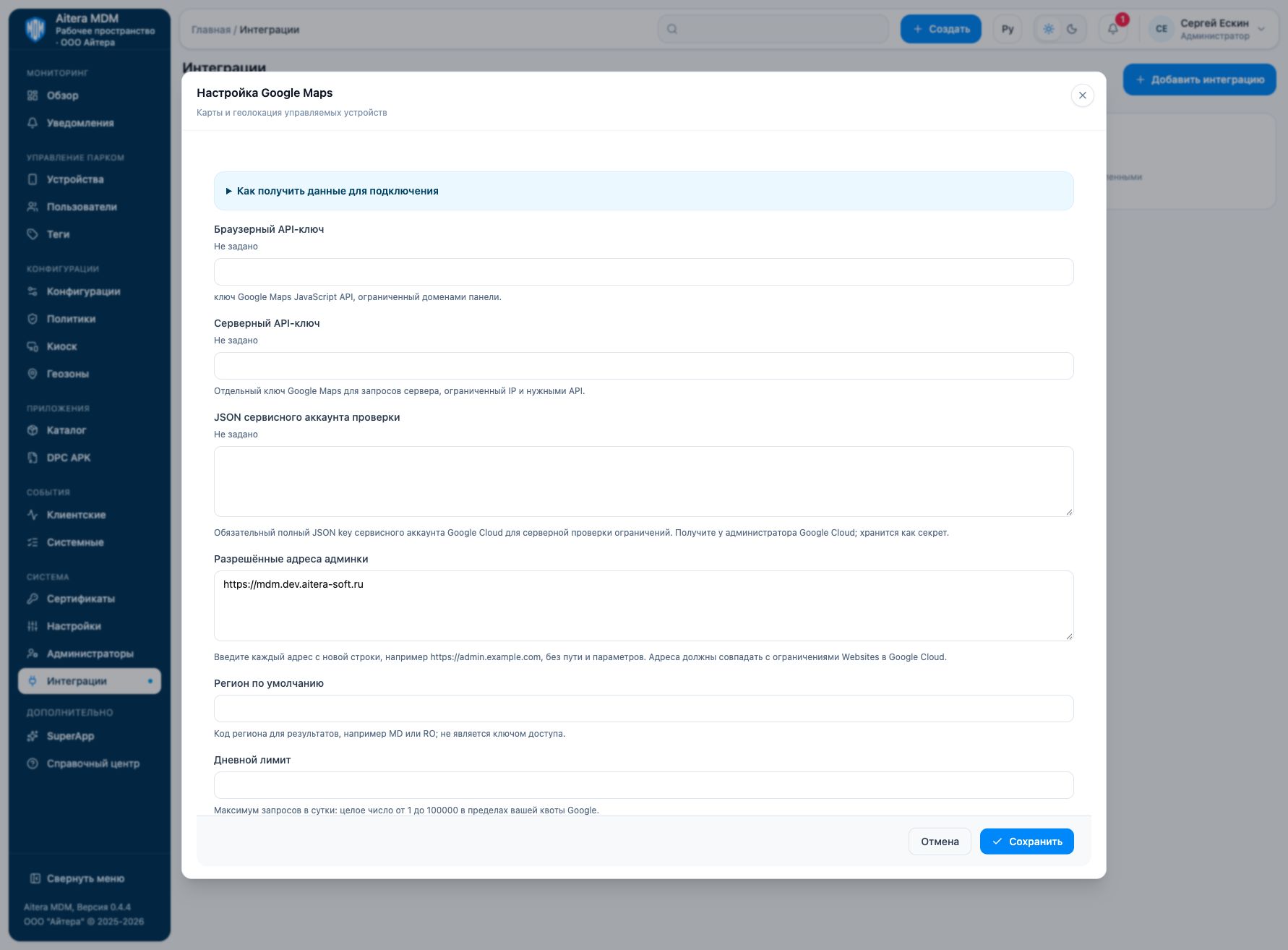
Parameters
| Field | Kind | Purpose and filling rules |
|---|---|---|
| Default region | Setting | Region code for results, for example MD or RO; it is not an access key. |
| Daily limit | Setting | Maximum number of requests per day: an integer from 1 to 100000 within your Google quota. |
| Allowed admin console addresses | Setting | Enter each address on a new line, for example https://admin.example.com, without a path or parameters. The addresses must match the Websites restrictions in Google Cloud. |
| Server API key | Secret | A separate Google Maps key for server requests, restricted by IP and the required APIs. |
| Browser API key | Secret | Google Maps JavaScript API key, restricted to the console domains. |
| Verification service account JSON | Secret | Required full JSON key of the Google Cloud service account for server-side verification of restrictions. Obtain it from the Google Cloud administrator; stored as a secret. |
Saving and changing
Fill in the parameters and click “Save”. When the form is reopened, secrets are not shown: the secret presence indicator is not its value. An empty field for an existing secret keeps the previous value; a new value replaces it. After changing, check the connection again.
The Google Maps type is available in the full integration catalog.
Verifying the result
- Open the device map and check that the base map loads with the browser key.
- Check address search or geocoding with the server key.
- In Google Cloud, compare the restrictions of both keys with the admin console addresses and the outgoing IPs of the MDM server.
The “Configured” status means saved settings. Evaluate the connection check result and the target operation result separately. Check details are available in the connection card.
Limitations and dependencies
The MDM limit does not increase the Google quota and does not cancel billing. The browser key is available to the browser by design; protection is provided by site and API restrictions. The server key and the account JSON must remain secret.
Troubleshooting
| Symptom | What to check |
|---|---|
| Map does not load | Check the Maps JavaScript API, billing, the Websites restrictions and the actual origin of the admin console. |
| Map is shown, address is not resolved | Check the server key, the required API, the server’s outgoing IP and the remaining quota. |
| Restriction check fails | Check the verification account JSON, its project and the API Keys Viewer permissions. A JSON from another project does not confirm the restrictions of your keys. |