Yandex Maps
Fleet map and address handling through Yandex Maps. Server-side geocoding and the browser map use different keys.
Open Integrations → Add integration → Yandex Maps. For an already installed connection, use Configure.
Preparation
- In the Yandex developer console, create a JavaScript API key and a key for the required server API.
- Restrict the browser key by domains/Referer and the server key by IP networks, if the plan and the API support it.
- Specify the map language in the language_REGION format, the default region, and the daily limit.
- Save the keys and check the map and the server-side address search separately.
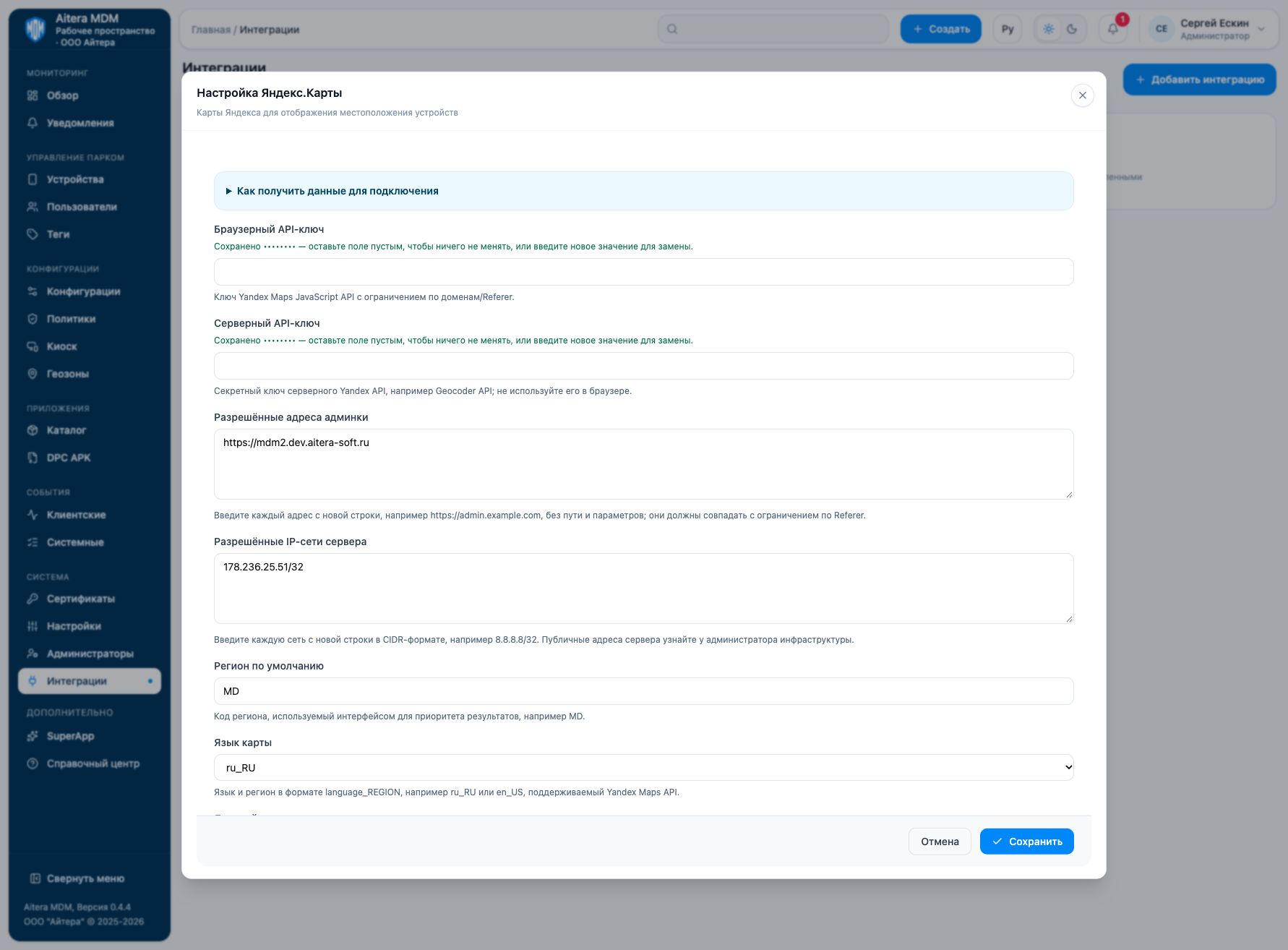
Parameters
| Field | Type | Purpose and filling rules |
|---|---|---|
| Default region | Setting | Region code used by the interface to prioritize results, for example MD. |
| Map language | Setting | Language and region in the language_REGION format, for example ru_RU or en_US, supported by the Yandex Maps API. |
| Daily limit | Setting | Limit of requests per day: an integer from 1 to 100000, not higher than the quota of your Yandex plan. |
| Allowed server IP networks | Setting | Enter each network on a new line in CIDR format, for example 8.8.8.8/32. Get the server’s public addresses from the infrastructure administrator. |
| Allowed admin console addresses | Setting | Enter each address on a new line, for example https://admin.example.com, without a path or parameters; they must match the Referer restriction. |
| Server API key | Secret | Secret key of the Yandex server API, for example Geocoder API; do not use it in the browser. |
| Browser API key | Secret | Yandex Maps JavaScript API key restricted by domains/Referer. |
Saving and changing
Fill in the parameters and click “Save”. When the form is reopened, secrets are not shown: the secret presence indicator is not its value. An empty field for an existing secret keeps the previous value; a new value replaces it. After making changes, check the connection again.
The Yandex Maps type is available in the full integration catalog.
Verifying the result
- Check that the map is displayed on the device card.
- Check the address search separately: a working map does not prove that the Geocoder API works.
- Compare the domains/Referer of the browser key and the public outbound networks of the server key with the parameters in the Yandex console.
The “Configured” status means the settings are saved. Evaluate the result of the connection check and the result of the target operation separately. Details of the check are available on the connection card.
Limitations and dependencies
The daily limit in the form is an integer from 1 to 100000. It applies within the provider’s quota. The list of addresses and CIDR is entered one value per line. The available languages are ru_RU, en_US, en_RU, uk_UA, be_BY, and tr_TR.
Troubleshooting
| Symptom | What to check |
|---|---|
| The map background is empty | Check the browser key, access to the JavaScript API, and the Referer restrictions. |
| Address search error | Check the server key, access to the Geocoder API, CIDR, and quotas. |
| It stopped working after the admin console was moved | Update the allowed addresses in MDM and at the provider; a page path is not an origin. |