Getting started with Android
For the mobile client scenario, use the links to Aitera MDM in Google Play and RuStore. The store client does not replace the corporate registration of the Aitera DPC.
First determine the scenario: a corporate device managed by MDM or a personal phone with the mobile app.
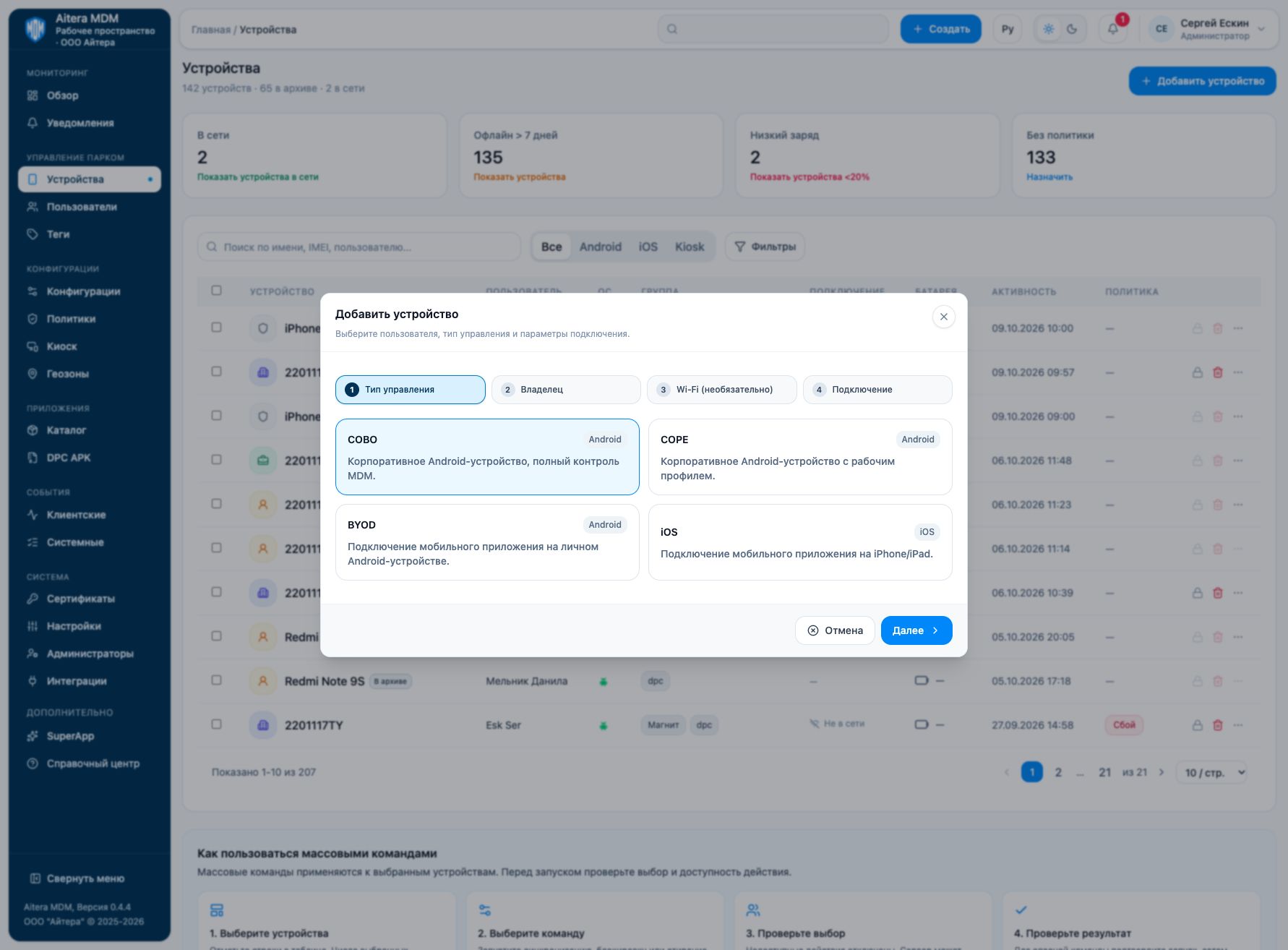
Connecting
- Open “Devices → Add device”.
- Select COBO, COPE or BYOD.
- Select a user; for COBO, use organization ownership if needed.
- Set the QR lifetime. For COBO/COPE, select a Wi-Fi configuration if needed.
- Create the connection and follow the wizard’s instructions on the device.
- Check connectivity and the mode in the console, then assign configurations and apps.
Installing the corporate DPC and registering through Android Enterprise use different management channels. A release from “DPC APK” refers to the Aitera corporate agent; uploading it does not update Google Android Enterprise automatically.
A comparison of channels and the QR limitations for BYOD are described in the section Android DPC and management channels.
Check the minimum Android version for the specific build of the agent or mobile client. The old universal statement “Android 5.0 and later” does not apply here.
Connection wizard · Android channels · DPC releases · Integrations